AI image quality workflow

Enhance Image Quality with AI

Improve photo clarity, recover detail, and clean up low-quality visuals with one browser-based image enhancement workflow.

Upload Image

Overview

Fotopia Enhance is the broadest entry point when you do not want to decide between pure upscaling and blur repair. It is designed to improve overall image quality for mixed image types, from casual photos to family archives and older digital pictures.

Why This Workflow

Some images do not just need to be larger or sharper. They need a balanced improvement across clarity, softness, and overall presentation. This page positions Fotopia as the all-purpose image quality workflow.

Before and After Enhancement

See how a lower-quality scan can become cleaner and easier to reuse with broader image enhancement.

Proof section

General image cleanup for low-quality source files

Original issue: The original file feels dull, soft, and lower quality across the whole frame rather than having one isolated issue.

Improved result: General enhancement improves overall clarity and helps the image feel cleaner for reuse in content and archives.

Recommended use: Recommended when you want one broad quality pass instead of choosing between upscaling and blur repair first.
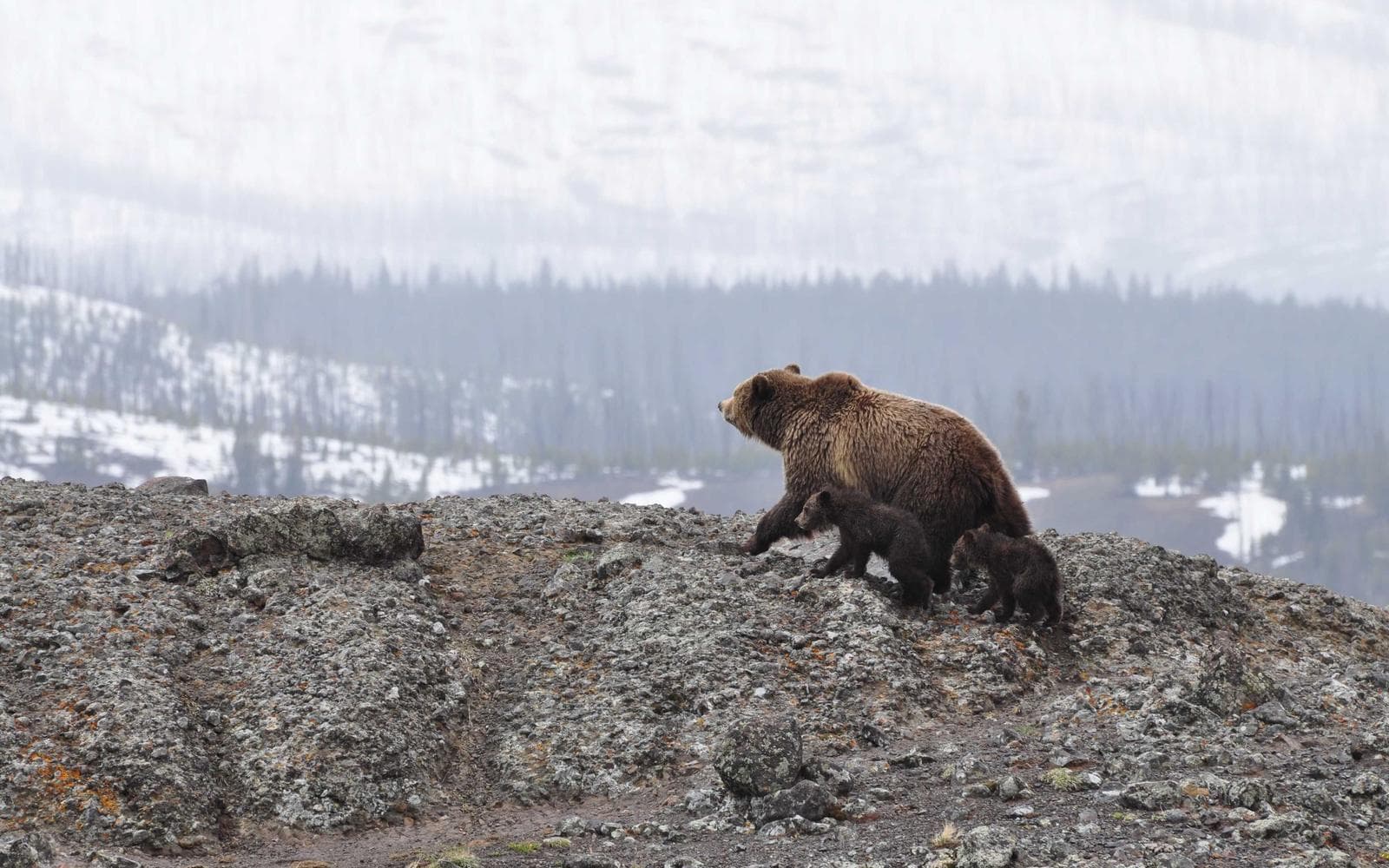

Photo after AI enhancement with better clarity
Low-quality photo before AI enhancement
BeforeAfter

Benefits

All-in-one quality improvement

Start here when the image needs broader cleanup instead of a narrow, single-purpose adjustment.

Recover detail

Bring back more readable edges, textures, and small visual signals that got lost in a lower-quality source.

Clean up low-quality visuals

Improve images that feel soft, compressed, or generally weaker than you need for sharing or publishing.

Useful default entry point

Choose this workflow when you want a general enhancement pass before deciding whether deeper upscaling is necessary.

When Enhancement Is the Better Default

Use case illustration for general photo library cleanup

Mixed photo libraries

Use the general enhancement path when a batch of images has different issues and you need one consistent starting point.

Use case illustration for family keepsake enhancement

Family keepsakes

Improve meaningful photos that need clearer output but do not obviously fit a blur-only or upscale-only workflow.

Use case illustration for archived image enhancement

Archived images

Clean up older or weaker files before deciding whether they also need bigger output or further restoration work.

Use case illustration for everyday photo enhancement

Everyday photos

Use the broad enhancement path for casual images that simply need to feel clearer and more usable overall.

General Enhancement Workflow

  1. 1

    Step 1

    Upload a low-quality image

    Start with any image that feels soft, weak, or generally below the quality you need.

    Upload a low-quality image process illustration
  2. 2

    Step 2

    Run the enhancement workflow

    Fotopia applies a broader quality pass aimed at improving clarity, detail, and overall visual cleanup.

    Run the enhancement workflow process illustration
  3. 3

    Step 3

    Decide if more specific work is needed

    Use the result as your final image or move to upscaling or unblur pages if the image still needs targeted work.

    Decide if more specific work is needed process illustration

FAQ

What does image enhancement include?

It includes broader quality improvement such as clarity gains, detail recovery, and overall visual cleanup.

How is enhancement different from upscaling?

Upscaling focuses on larger output. Enhancement is broader and aims to improve the overall look of the image, not just its size.

How is enhancement different from unblur?

Unblur is primarily about softness and clarity recovery. Enhancement is the better default when the image has mixed quality issues.

When should I start here instead of another tool page?

Start here when you want a general improvement and are not sure whether the main problem is size, blur, or overall image weakness.

What types of images fit this page?

It works well for mixed photo libraries, family keepsakes, archived images, and everyday photos that need stronger overall presentation.

Can I still use the other pages afterward?

Yes. This page is a broad starting point, and you can move to more targeted pages if the image still needs specific work.

Related Tools

Choose the workflow that best matches the problem you are solving right now.

Use AI enhancement when your image needs a broader quality pass

Upload Image